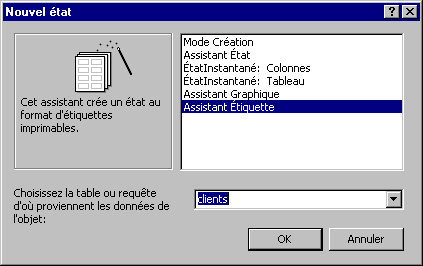
 From
the list of reports that you can create, select the Label Assistant. From
the list of reports that you can create, select the Label Assistant.
From
the list of tables and queries available, select the Clients (customer)
table.
Press
the OK button.
Note:
If you have data that result from several tables, create a query consistsd
of several tables. For more data, read Web pages on the queries and the exercises
of the queries.
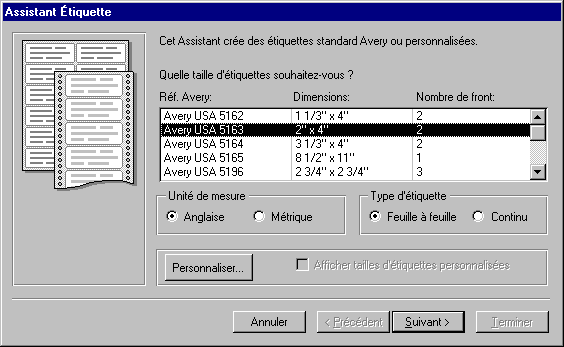
The assistant labels will ask you some questions on the type of
labels on that the report will print the chosen data. For the exercise,
the chosen labels will be that of 2 " (inches) by 4 " (inches) from the Avery
company.
For
the mesuring unit option, select the English option.
For
the type of label, select the Sheet by sheet option.
For
the list on possible label at the top of the window, select Avery USA 5163.
Press the Next button.
The option Counts frontally indicates the number of labels that are the one
next to another. It's always possible that you don't find the size(format)
that you wish from the units of measure, the companies and the types of labels.
You can so press the button To personalize to generate your own sizes(formats)
of labels with the data that you possess.
Note:
On Access 2000 offers to choose you among several companies as the choice of
labels. select the company of that you bought labels and model.
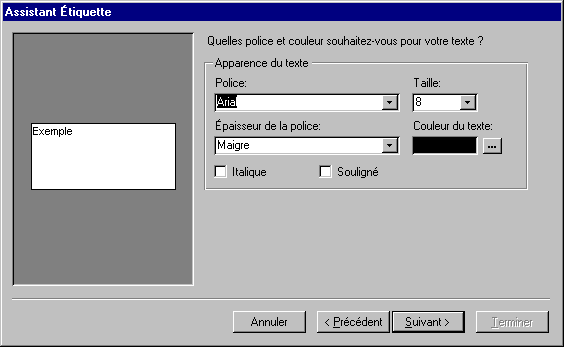
The assistant labels you demand then the kind of presentation of text
that you want. pay attention not to choose a size of too big font. Otherwise,
the text will not enter on the label.
Select
the font type, size, style and the color of your choice.
Press the Next button.
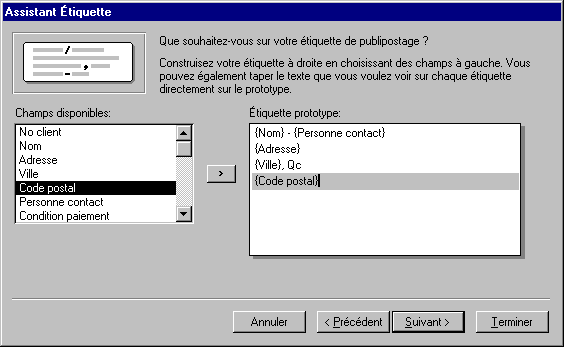
The label assistant asks for the kind of presentation of text that you want.
Pay attention not to choose a font size that's too big. Otherwise, the text
will not enter on the label.
There are two ways to select a field.You can:
Select
a field from the left column and press the  button
. button
.
OR
Double-clic
on the disired field from the left column.
For this exercise, place the fields in the same order as described below:
Select
the Nom (name) field.
Press the spacebar, the " - " key and the spacebar once again.
select
the the field Personne contact (person in charge).
Press the Enter key.
The label will pass to the next row every time you press the Enter key. As
you have just carried out, you may have several fields on the same
row. Furthermore, you may have also of the text and the fields on
the same row.
Select
the field Adresse (Address).
Press
the Enter key.
Select
the field Ville (city).
Write
the following text ", Qc" (Québec).
Press
the Enter key.
We presume in this case that all the clients are in the province of Québec.
Another field (province) will be required if they are spread outside the province.
Another field (country) will be required for international business.
Select
the the field Code postal.
Press the Enter key.
The required fields and the presentation are all placed correctly on the label.
verify with the picture for this part of the exercise above.
Press the Next button.
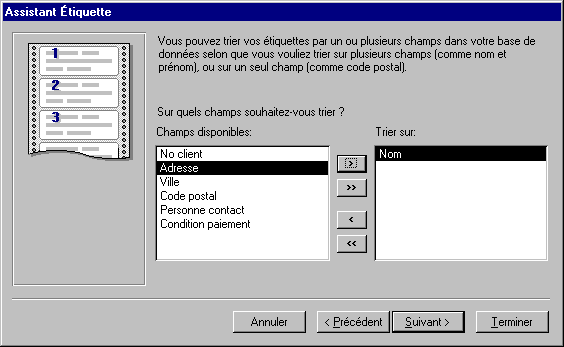
The assistant asks you then if you want to sort out the records on one or several
fields. For the purpose of the exercise, the records will be sorted out in order
crossing according to the name of the company.
From
the list fields available form the left column, select the Nom field.
Press the button
.
OR
Double-clic
on the field Nom.
Press the Next button.
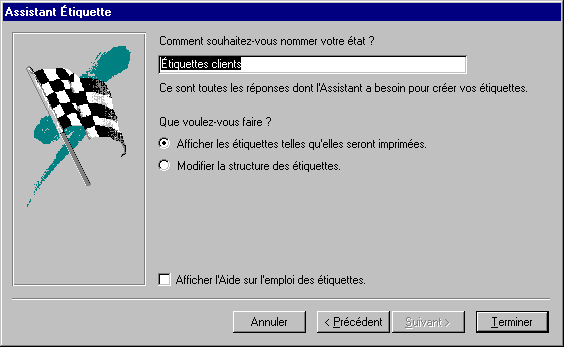
The assistant will ask you that name you must give to
the report. It suggests you the title Labels customers. It's a rather good
description of the report. So, we will save the label report.
For
this exercise, leave the options "as is".
Press the Finish button.
Access will take a moment to generate the report according to the
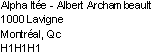
options that you chose and to save it in your database. Here
is what should look like the first label of the report.
Modify report
From
the View menu, select the Creation Mode option.
OR
Press the  button. button.
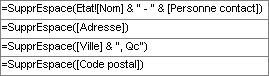
Access uses the function SupprEspace() to remove spaces useless to the
end of a field. The software uses also the command & to glue together
parts of text, placed between quotation marks, or the other fields. look at
the first row of the label. The function pastes together the field Nom,
the text that was the field Personne contact put between quotation marks,
"-".
For more data about my way of modifying this report, please read the Web page on forms. Tools used to create forms and reports are the same.
|


 .
. This site is hosted by 1&1.com
