

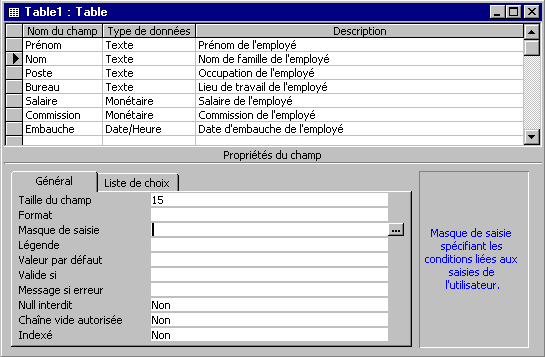
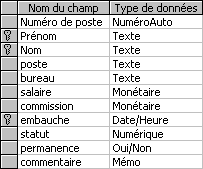
IntroductionYou will find in the tables three important elements of a database; the list of fields, the properties of each one and the data that's in them.Tables are structured. The structure contains the list of fields as well as the properties or the characteristics of these fields. This page gives you not only the information to create of a table, but also how add and change fields in it. The first part of this page consists of creating a table to keep some information about the employees of a company. You will see in this way all the stages for the creation and the management of a table. At the time of the creation of your tables for your needs, don't especially forget the phase of analysis. A good analysis in depth of your needs and the data that you need to reach your expectations can at the end save you time and escalations a lot. This phase is explained in more details on Access's introduction page. Before we begin, here are some explanations on the fields of the table Employees. Every record of the table should have the name and the First name of the person. The post is the occupation that the person occupies in the company. For this example, there are only two types of occupation: the managers and the sales person. The field office(desk) indicates the office location. For this company, there are employees in Montreal and in Quebec. The managers work according to a salary whereas the sales person work only on commission. To end, you must have the date of hiring of the employee. Here is the list of the fields of the table Employees so that the compulsory characteristics. Besides giving a name to the field, you must determine it a type and, in most of the boxes, the size. It's necessary to indicate the size of fields according to the number of characters that you want to keep in these fields.
Create a tableThis exercise consists in creating a table that contains of the information about the employees of a company. Before even entering of the information, it is necessary to give a structure to this table. It's necessary to determine a list of fields as well as the characteristics of these fields. It's only after this stage that it will be possible to enter of the information.
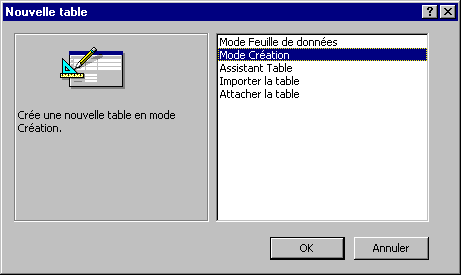
Access offers you several ways to create a table of data. The mode worksheet shows you a grid in that you write simply the information that you want to keep. You can then choose the mode creation to change the options that Access had determined for you. The mode creation contains all the options to create and personalize the structure of a table of data. The assistant Banks gives you of the assistant to the creation of a table by asking you to choose among a list of fields that you will find mostly in a table. You can also import a table from another base of datum of Access or even a working sheet of Excel. The last option allows you to make(do) a link for another table of another data base and to reach its information.
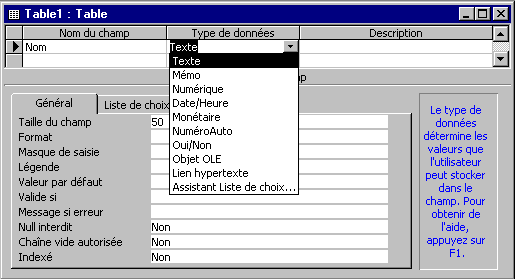
1. Give a name to the fieldDuring the addition of a field in the structure of a table, it's necessary to give it a name and a type of field. According to the type of field, it's also necessary to indicate to Access the number of characters that you want to protect in the field. You can also, in your choice, add a how to give more information about the contents of the field.
The types of fieldsAccess the choice between several types of field gives you
While configuring each field, you can also add a description. This is practical when you return some months later and want to know why you chose to have these fields in the table. This description is also going to appear in the left lower corner of the window at the time of the entry or the modification of the data. The properties of the fieldAt the bottom of the screen, there are the characteristics or the properties of the field. Each is practical under the circumstances. The next part explains each of these properties and when these are practical. You can also fetch more information about one of the properties below by placing the pointer on this one and by pressing on the key F1.
These last properties are those that are available for the fields of type Text. Here are some available supplementary properties for the other types of fields.
To have more information about the properties of fields:
Access's assistant will show you the information that it possesses on this property. Primary keyA primary key is a field, or a series of fields, that helps to differentiate a record of all the others of the table. For example, one can use the number of social assurance to differentiate each from the employees of the company. There is no two that are identical. One can also use a number of inventory to differentiate each of the products of the others etc. A primary key can also consist of several fields. As long as the combination of field differentiates a record of the others. For example, one can add a booking knowing that there will be two persons who will appear at the same time with the same name. If it would be the box, it would be necessary to add another field to the primary key to differentiate them. Or, one could simply create a field No. of booking to solve the problem. The use of several fields to compose a primary key is very rare but possible. The method to insert the primary key on one or several fields of the table will be explained a little farther on this page; at the time of the modification of the table. Secondary keyA secondary key is a field that is connected with the primary key of another table. For example, the field of the table Charges can be connected with the key No. of customer of the table Customers. Save the structure of the tableHaving created a table, you must keep it.
Access will ask you that is the name of the new table.
Access goes possiblement to ask you if you want to add a primary key to your table. For the moment, this table does not need primary key. It will be added a little farther on this page.
Data entryNow the structure of the table is defined, it's possible to enter of the useful information for the user; data. To begin, there are data on the four employees of the office(desk) of Montreal. The next stage consists in entering these data the table.
Access will show you a grid to enter the data just like this one but without the data.
Note: The last row of a table or a query always shows one "*" in the grey box to the left of the row. This is to indicate the end of this one. enter figures without the signs $. In the laboratory, enter dates size(format) year ( 2 figures), month, day with a hyphen among each. Insert an entry maskAn entry mask is to indicate to Access the way that the information entered a table. You can force the user to enter the data in a certain way. For example, it's unthinkable to have letters in a phone number or a social number of assurance. Also, a postal code is a series of letters and figures. How to make sure that the data will have entered in a right way? it's for that reason that there are the masks of seizure. Access already has some sizes (models) for the data that you will find mostly in a data base. The next part is to demonstrate how to reach you these models. You will apply it according to your needs in your own tables.
At the end of the box, a button with three little dots inside has just appeared.
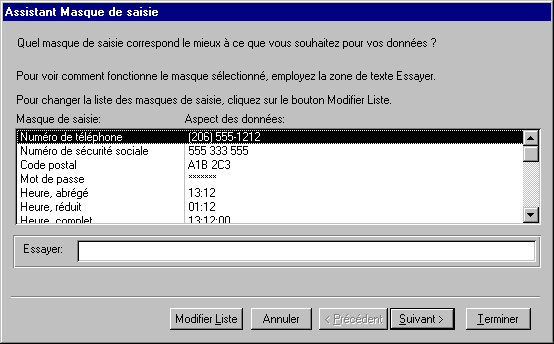
Access is maybe going to ask you to protect your table before being able to continue. protect it. If Access asks you also for a primary key, for the needs of the exercise, don't add it for the moment. The window with the list of the models has just appeared.
There are several models. Each is for a different occasion. You can use them to enter a phone number up to a password.
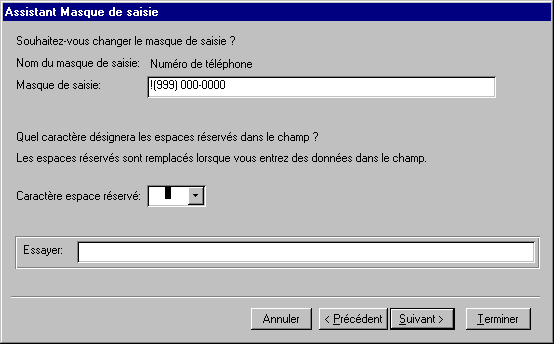
The following dialog box will appear.
This window shows you the input mask. You can experiment by writing of the text in the box To try. You can change the length of the input mask better to answer your needs. By placing the cursor in the box Input mask and by pressing on the F1 key, you will have a list of the possibilities for the size(format) of the input mask. This list is very detailed and should be read attentively.
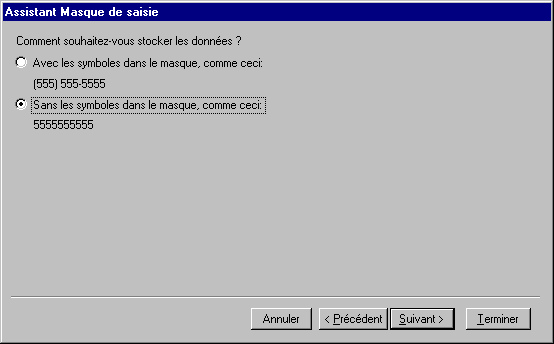
Access asks you then how that the information will be stored in the field: with or without the symbols of the input mask (the brackets, the spaces as well as the hyphens).
A last window should appear to indicate you that the creation of the mask of seizure is ended.
Add an input maskThe previous option how showed to use the masks of existing seizures. But, you can also you to add your own masks of seizures better to answer your needs. The text that follows shows the stages to be followed to create a new input mask. The next exercise will create a new input mask for a code of inventory. This code consists of three letters, a hyphen and four figures.
A dialog box will appear of whom(that,what) all the boxes will be empty. It's to you to enter the name of the input mask, its presentation, if there are reserved spaces. You can even add an example of the input mask.
You can add as many masks of seizure as you want. Insert a Valid ifThe property Confirms If allows to put limits or borders in the entered of data. For example, there are very few persons who like working for a salary or a negative commission. The exercise consists in demonstrating ValideSi's functioning by using it not to allow negative values fields Salary and Commission.
The properties of the field will appear in the section of bottom.
it's in this case that you put the criteria of validation. You can use various operators (= >, <, < =, > =, < >, Among and, or, Not...) to create the criterion of validation. For the exercise, you must make sure that the value that entered the field is not negative.
In the exercise, it's possible that a person earns no salary or no commission according to the occupation of the employee in the company. The managers earn only a salary whereas the sales person earn only a commission on sales. So, it's possible to have a salary or a commission equal to zero. The box Validation text is the text that will appear to the screen when the contents of the field respect the criteria of validation. In that box, if the user enters a negative figure.
The next time that you will enter or will modify the contents of the records, try to enter a negative value to see the result. Modify the tableAfter a while, you will notice that changes are necessary for a table. It needs new fields. Or, certain fields need to be modified or simply eliminated.
For the example, you must add four new fields: Numéro of poste (Employee's ID number), status, permanent status and comments. The field Numéro of poste (Employee's ID number) will be used to differentiate each of the records. It will be the primary key of the table. Furthermore, the field Numéro of poste (Employee's ID number) will be inserted at the beginning of the structure of the table. The field Status will serve for saving the marital status of the employee. This field will be the Number type. It's going to keep the marial status according to a number: 1 = bachelor(single woman), 2 = married without dependent, 3 = married with dependent, 4 = divorced, 5 = divorced with family allowance. So, the only valid rags are 1 and 5. It will be also used during the creation of a form. The field Permanent will be the type Yes/No. It's going to determine if the person with receipt its permanent status in the company. The field Likent will be of type memo. It will be possible to write comments, about the performance of each from the employees of the company.
Insert a field
A new free row will appear. The other rows will be moved downward.
Move a fieldTo change the order of presentation of fields
The field will re-fit into the structure of the table between both fields among that the row that separates it's more thick as soon as you will release the mouse button. Delete a field
Place the primary key
|
 Place
the pointer in the property for that you want more information. Press the F1 key.
Place
the pointer in the property for that you want more information. Press the F1 key. button.
 button.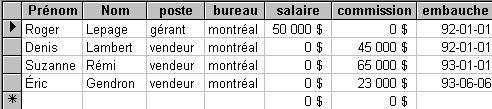

 button
located in the left lower corner of the window.
button
located in the left lower corner of the window. button
to return you to the end of the list of the masks of seizures and be able to
add a new of it.
button
to return you to the end of the list of the masks of seizures and be able to
add a new of it.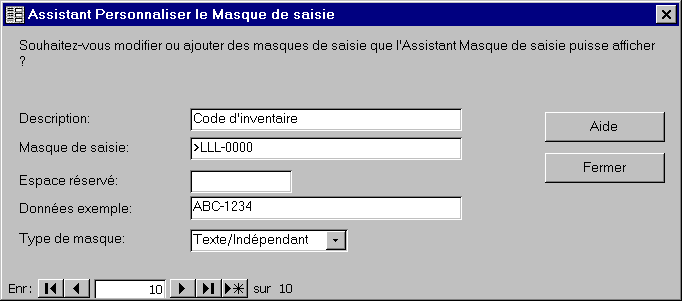
 button
  button.

Numéro of poste (Employee's ID number) |
First name |
Name |
Occupation |
Office |
Salary |
Commission |
Hiring |
Status |
Permanent |
Comments |
1 |
Roger |
Lepage |
Manager |
Montreal |
50000 |
|
92-01-01 |
2 |
Yes |
|
2 |
Denis |
Lambert |
salesperson |
Montreal |
|
43000 |
92-01-01 |
1 |
Yes |
|
3 |
Suzanne |
Being Rémi |
salesperson |
Montreal |
|
65000 |
93-01-01 |
1 |
Yes |
|
4 |
Éric |
Gendron |
salesperson |
Montreal |
|
23000 |
93-06-06 |
5 |
No |
|
5 |
Roger |
Dubuc |
Manager |
Quebec |
43000 |
|
93-01-01 |
1 |
Yes |
|
6 |
Elects |
Lavigueur |
salesperson |
Quebec |
|
47000 |
93-06-01 |
2 |
Yes |
|
7 |
Paul |
Gendron |
salesperson |
Quebec |
|
22000 |
93-01-06 |
1 |
No |
|
Sorting the records
At the time of showing the contents of the table in mode sheet of data, the option of the sorting shows the records in increasing or lessening order according to a field.
In the sheet of data mode, you will find in the toolbar the following
buttons:  . These
 Place
the cursor in the column that you want to show in increasing or lessening order.
Place
the cursor in the column that you want to show in increasing or lessening order.
Press one of the buttons to show the table according to this field
in the order that you want.
All the records will be shown according to the order for that you asked on the field where is the pointer at this moment.
The filter
The option of the filter allows only to show a part of the records: the one that answers the criteria that you determined before. This is very advantageous when the user wants to find quickly some records among a lot of data.
From the sheet of data mode, you will find buttons to create, activate
and deactivate the filter on a table or a query:  .
.
Creating a filter
Determine the criteria of selection. You can choose only to show a part of the records; those that answer certain criteria.
From
the mode worksheet, press the  button.
The list of the fields of the table will appear the one next to another.
To
remove the previous filters, press the  button.
It remains only to put the criteria only to show the records that answer these conditions. The exercise consists of showing only the sales person of the region of Quebec. So, will be needed two criteria: the one for the Occupation field and another for the Office field.
Place the pointer in the box Occupation.
Press the triangle pointing down at the end of the
box.
From
the list, select the salesperson occupation.
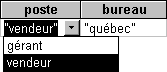
Place the pointer in the Office box.
Select Quebec from the list.
The list of choices makes easy to find the information. It only shows what's contained in the field. But, you can also create its own criteria. For example, it's possible to know that earns a salary superior to 45 000 $ by putting the operation > 45000 below the Salary field.
it's also possible to combine criteria. In this exercise, two criteria are combined. Occupation equals to salesperson AND Office equals in Quebec.
Activate a filter
To
activate the filter, press the  button.
OR
From
the Filter menu, select the Apply the filter option.
Access will show you the records that answer the criteria that you chose.
Deactivate a filter
Press
the button.
OR
From
the Record menu, select the option View all the records.
Print a table's structure
From the Tools menu, select the Analyze option.
Select the documentation option.
The following dialog box will appear.
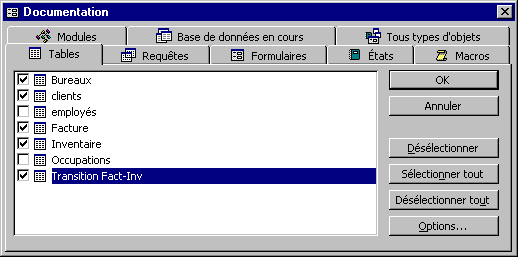
Select one
or several tables the structure of that you want to print.
Press the Options... button.
The following dialog box will appear.
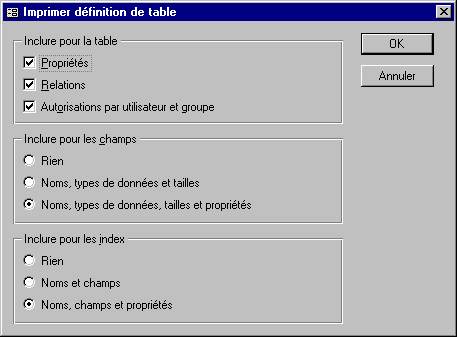
Select
the options that you need.
Press the OK button.
Once having
returned to the window of documentation, press the OK button.
Access will generate the state for that you asked. You can see it in the screen or print it:
By pressing
on the  button.
OR
From the File menu, select the option Print.
OR
Press the CTRL and P keys.
Export a table
Access gives you the possibility of exporting the data of tables. These can be exported towards other data bases or in the size(format) of the other applications such as Excel or Word. You can in this way take advantage of the possibilities of these for calculations, analyses or mailing for example. It's to note however that it's better to export from the queries if you need only a part of the records and not the whole.
From the main
menu, select the Tables tab  .
.
Click on the
table that you want to export.
From the File menu, select the Export Recordoption.
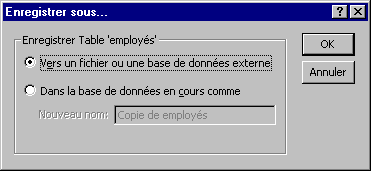
Select the To an external file or a data base option.
Press the OK button.
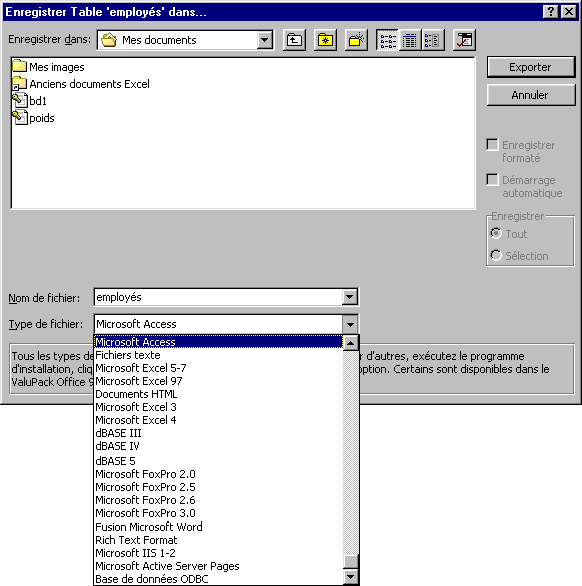
Select the
name of your choice.
Select the type
of file format that answers your needs.
Press the Export button.
Access will create a new document with the data of tables in the size(format) that you chose.
Import a table
Import's option allows you to go look for data resulting from the other data bases or from the other applications and to add them to your data base. The next exercise consists in importing data from a file Excel. If you have not already made it, protect the file demodb.xls from the page of the demonstration files on a floppy disk.
From the main
menu, select the Tables tab .
Click on the table
that you want to export.
From the File menu, select the External Data and Import .
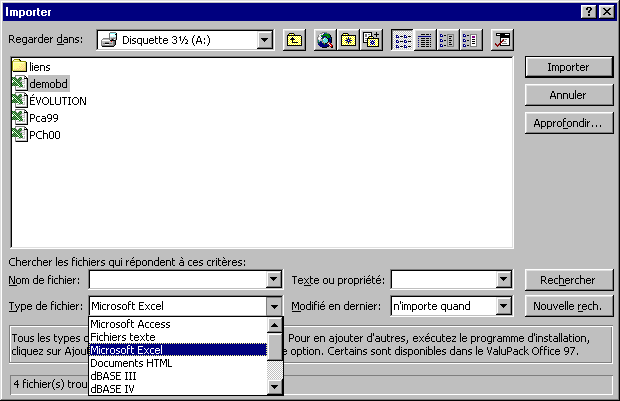
The next part presumes that you have to protect the file demodb.xls on a floppy disk.
Of the available
list of the drives box, select Floppy disk 3 ½ ( A ).
Of the list
of the Type menu of file, select the Microsoft Excel option.
From the list
of files on the floppy disk, select the demodb file.
Press the button Import.
OR
Double-click
on the demodb.xls file.
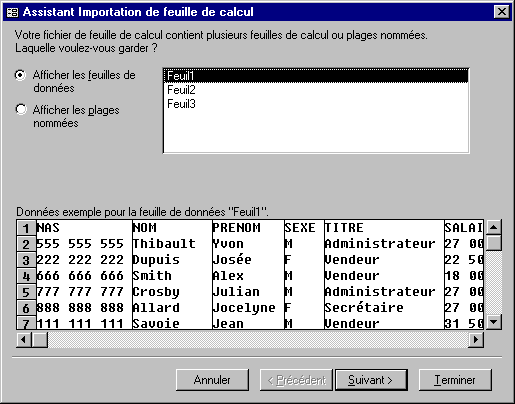
Access needs to know from the worksheet of Excel about that you will find the data to be imported. For the exercise, these data on the sheet of work named Sheet1. There is no other information about this sheet other than the data to be imported. Otherwise, it would have been necessary to give a name to the block of cells containing the data to be imported. The assistant of import calls it the option " View the named(appointed) beaches ".
Select the View the worksheets option.
Select the worksheet
named Sheet1.
Press the Next button.
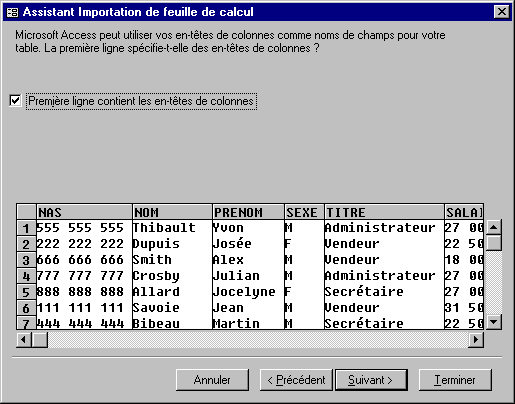
Access asks you if the data of the first row of the working sheet are the names of the fields of the table to matter. In that box, it's true that the data of the first row are the names of fields.
Click on the option First row contains headings columns.
Press the Next button.
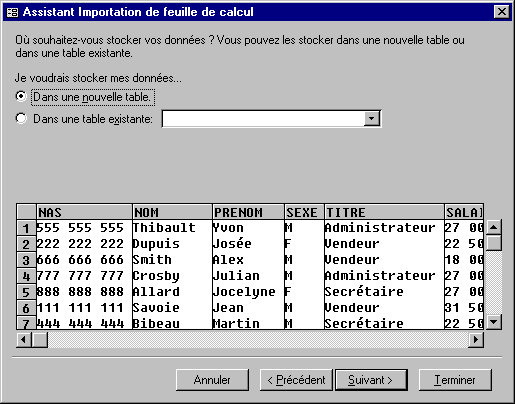
Access asks you if you want to create a new table to store these data and add them to a table that already exists. For the exercise, the data will be kept in a new table.
Select the
option In a new table.
Press the Next button.
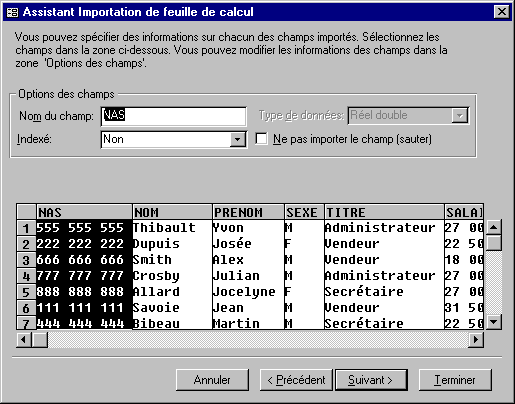
Access asks you now for more information about each of the fields, or columns, the data to matter. To change the properties of each of the fields, it's enough to click the grey box containing the name of the field. You can then change some properties such as the name, the indexation and if you want to import the field or not.
If the first row of the data to be imported was not that with the name of fields, you can change it now by entering the name of your choice the box Name of the field. Even if you answered yes the question two windows before, you can again change the name better to answer your needs.
Access asks you also if you want to index the field. Choices are not, yes with doubloon and yes without doubloon. This helps to sort out record and so necessary during the relations between tables. It accelerates the access to the data in the connected tables. place a sorting only on the necessary fields for your needs. You slow down the presentation of the data when you place the sorting on several fields of the table.
A last option gives you importer's choice only the fields that you need. It is still possible to you to exclude a field of the import. It's enough to choose the name of the field and to tick the box not to import the field.
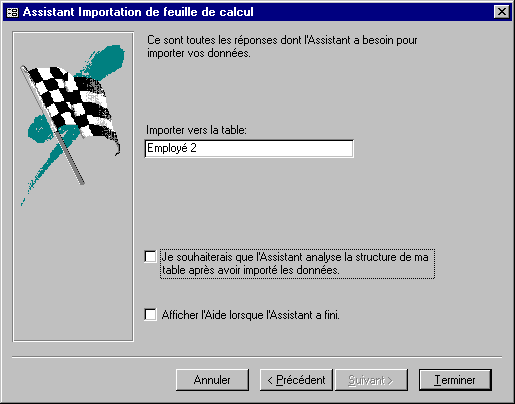
Access asks you then for that name you go to look to the table that you import. This implies that you don't import the data in a table that already exists.
You have also the possibility of activating the assistant of analysis of structure. It analyzes the data and looks for halvings information. He asks you then if he can cut the data in several tables to have the most optimal possible structure of tables. For the purpose of the exercise, don't activate this option. You can also have of the supplementary assistant when the assistant in ended his work.
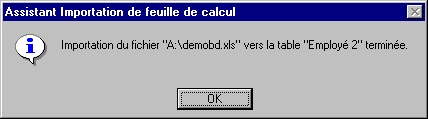
Access will confirm you the import of the data according to the choices for that you asked.
Press the OK button.
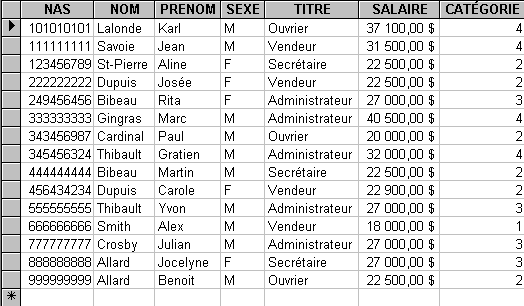
Here is the result of the import if you open the table Employee 2.
Linking a table
To link a table to the data base the advantage gives you to reach data that are outside of this one without enlarging it for all that. You can also add or remove data of the outside table. The disadvantage is that you can not change the structure of this table. The next exercise consists in binding(connecting) the same table as you mattered in the previous exercise. Some of the stages to be followed to link a data base external look like those of the import.
From the File menu, select the options external data and Link.
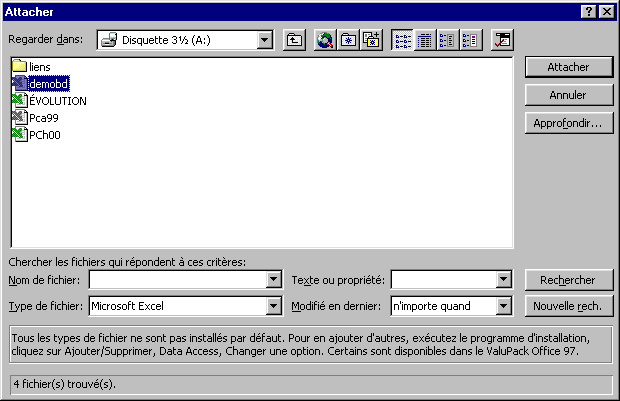
The next part presumes that you have to protect the file demodb.xls on a floppy disk.
Of the available
list of the readers of the Drive, select Floppy disk 3½ ( A
).
Of the list
of the Type menu of file, select the option Microsoft Excel.
From the list
of files on the floppy disk, select the demodb file.
Press the Paste button.
OR
Double-click
on the demodb.xls file.
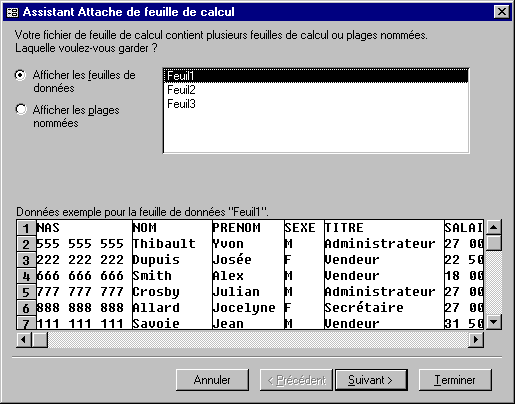
Select the
option View the worksheet.
Select
the worksheet named Sheet1.
Press the Next button.
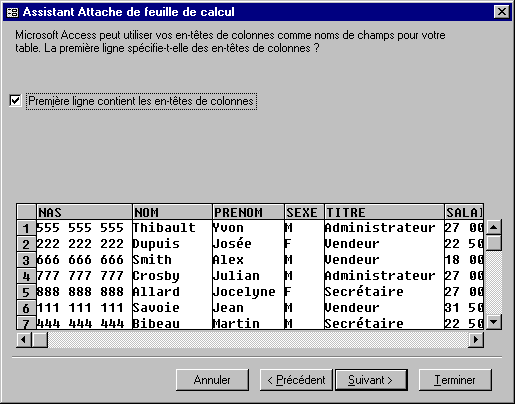
Access asks you if the data of the first row of the working sheet are the names of the fields of the table to matter. In that box, it's true that the data of the first row are the names of fields.
Click on the option First row contains headings columns.
Press the Next button.
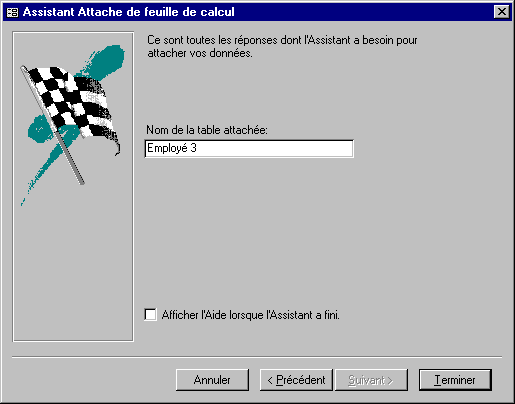
To end, Access asks you that is the name that you want to give to the attached table.
For the purpose
of the exercise, write in the Name of the attached table box: Employees
3.
Press the End button.
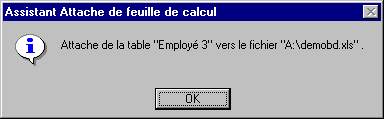
Access confirms you that the data of the working sheet Sheet1 of the file demodb.xls are now accessible from your data base.

To differentiate the tables of the data base of those that are attached, Access places an arrow in front of the attached table. Because the data result from the Excel spreadsheet, the icon of the application appears also.
| You like what you read?
Share it with your friends. |
 This site is hosted by 1&1.com
