Under the column Action is the list of the instructions that you can execute.
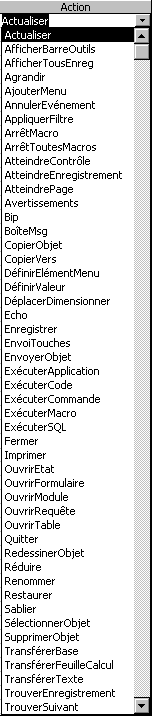 |
As you see it, Access offers you several instructions.
To have more data about these
 From
the main menu, select the menu of help by selecting?. From
the main menu, select the menu of help by selecting?.
From
the menu, select the Summary option and index.
Click on the tab Look for.
It's possible that it's a question the first time that the help is
used inside Access.
If
it's not already made, to prepare the file of help by using the
option Maximize research capacities.
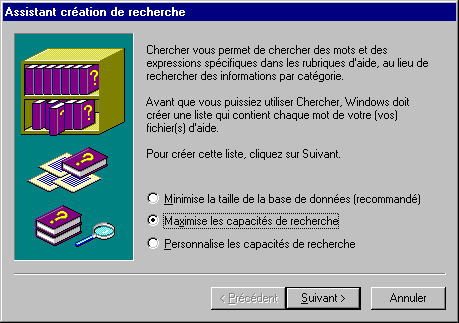
Press the Next button.
Press the button Finish.
Access will take a moment to generate the file of help.
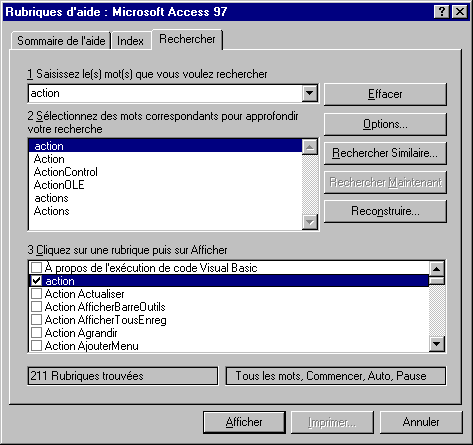
Enter
the word "Action" the first box.
Click on the first word action of the list of the second box.
The contents of the third box will change to show the
columns in the word "action" contents in the file of help. This list includes
also the actions of the macro.
In
the third box, select the action of your choice and press the
button Show at the foot of the window. |
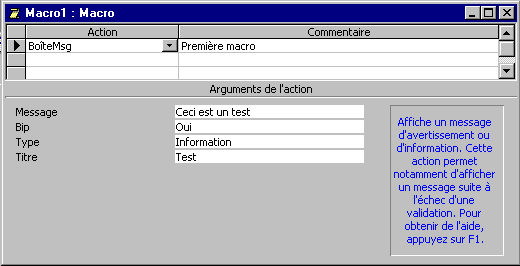
To continue the creation of the macro, you must enter the " arguments
of the action " or the characteristics of this one. These arguments change according
to the type of action. For the action BoîteMsg (message box):
Enter
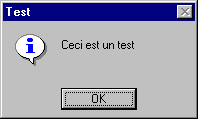
the text following in the box message: " This is a test ".
Select
the Yes for the Bip option.
For
the type of window, select the Information type.
For
the title of the window, write the text "Test".
If you want to add another action, place the cursor below the last action
and select it from the list of the actions.
To protect the macro:
From
the File menu, select the option, Save as / export.
Or
Press
the  button. button.
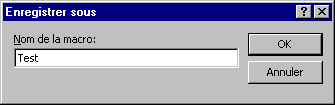
For
this exercise, enter the name "Test"
Press
the OK button.
Attach a macro to a button of form
The next part consists in attaching(fastening) the short story(piece of news)
macro Test that has just been created in the previous part in a button of form.
There are two ways to paste: paste to a new button or to an already existing
button. This part will cover these two ways.
Paste to a new button.
Return
to the main menu and click the Forms tab  . .
If you
already have a form, select it and press the Modify button.
Otherwise,
Press the New button. To accelerate the creation of a form, select one
InstantForm:Columns and the table of the employees.
When
the form is generated, enter the Design view by pressing on the  button. button.
From
the toolbar, select the command button . .
Click on the form on the place where you want the command button to appear.
The assistant of command button offers several options. It contains
several models of buttons to create quickly buttons the most used in various
categories.
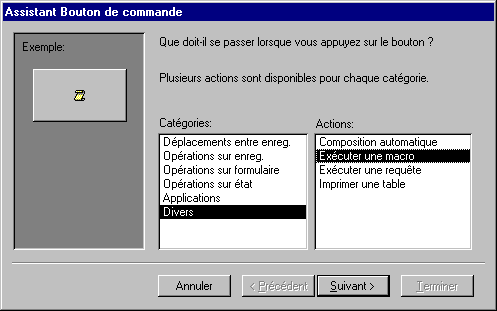
Among
the list of the categories, select the category "Miscellaneous".
Select
the option " Execute a macro " from the list of the actions.
Press
the Next button.
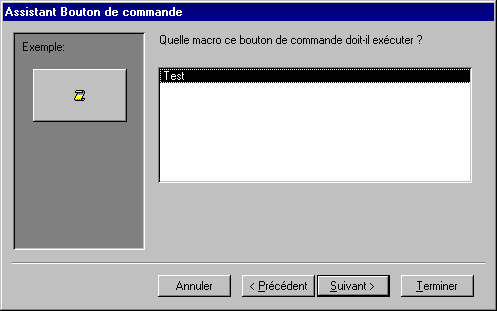
Among
the list of the macro available, select macro "Test".
Press the Next button.
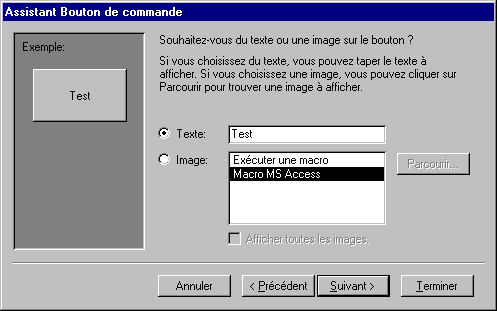
Access the choice offers you to show of the text or an picture on the top of
the button. For this exercise, the text "Test" will be written on the button.
Click on the option Text:.
Write
the text "Test" in the box in the right-hand side of the option Text:.
Press the Next button.
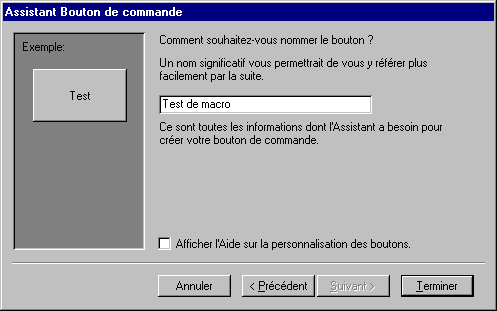
It remains only to give a name to the button.
For
the exercise, write " Test of macro " in the first box of the window.
Press
the Finish button.
Attach an existing button
He can arrive that you change opinion and want to change macro or of option
for an event or a button. This part of the page shows how to change you macro
and the list of the possible events with Access.
Select
the Design view for the form.
Place
the cursor over the button to be modified.
Press
the right mouse button.
From the
list of the possible options, select the Properties option.
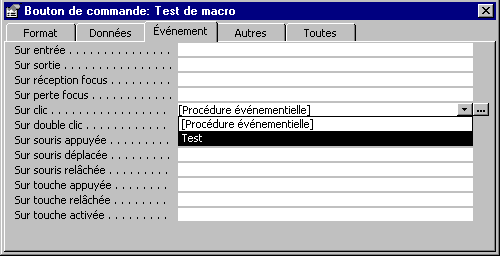
Click
on the Event tab.
Access a possible list of the events shows you. You can attach a macro
or a module to each of these events. It's so possible that Access executes
a macro when you click a button or a field and a different event if you make
a double click on the same control.
Click
in the box in the right-hand side of the event " On click ".
Press
the button with a triangle pointing down at the end of the box.
From the
list of the macro and the modules, select macro Test.
Close
the window of the properties by pressing on the  button. button.
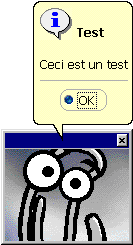
When you go to press the button Test, one of both following windows will appear as the assistant of Access is shown in the screen or not.
The autoexec macro
Access offers you the opportunity to execute a macro-command at the opening
of a database. This gives you the advantage to open with a macro to execute
instructions. For example, you can open the database with a main menu form.
You simply have to create a macro and giving it the Autoexec name. If you want
to open a database without executing the autoexec macro at the opening, keep
a finger on the Shift key at the time of opening the database. |


 .
. 
 This site is hosted by 1&1.com
